
Creation of the Business Object and authorizations
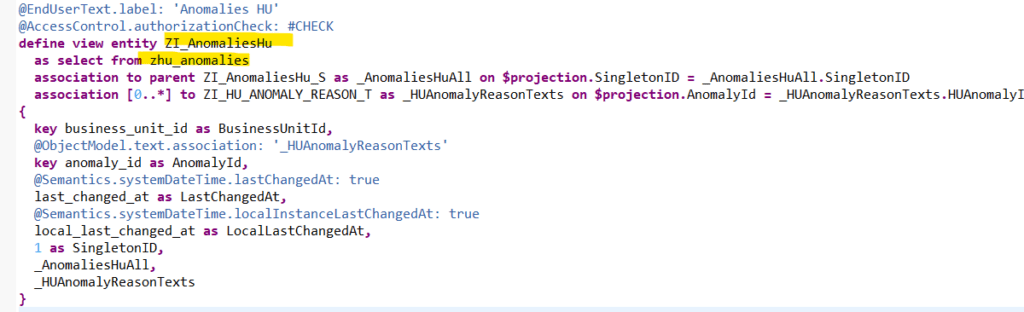
Here we create a CDS that allows us to list possible anomalies for a handling unit.
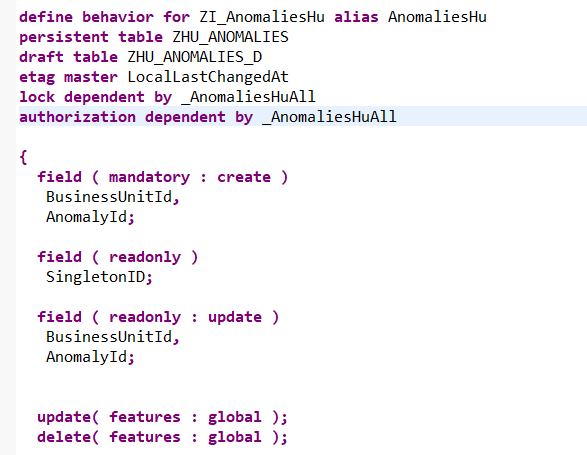
Then we create the associated BDEF:
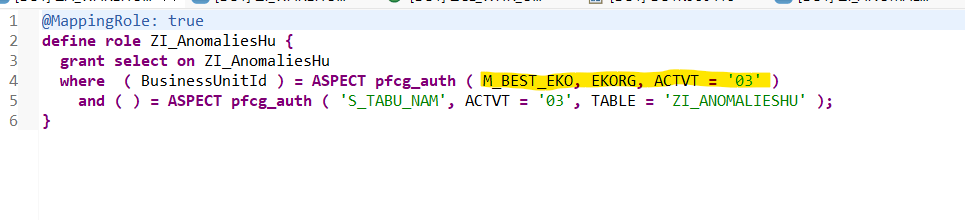
We add an Access Control CDS that filters the entries displayed to the user.
This means that we only display anomalies configured for purchasing organizations where the user has viewing rights.
2. Tests and problems
Once the annotations and the Fiori element application have been created, we can test with a user who has viewing rights for the “FRMA” purchasing organization only.
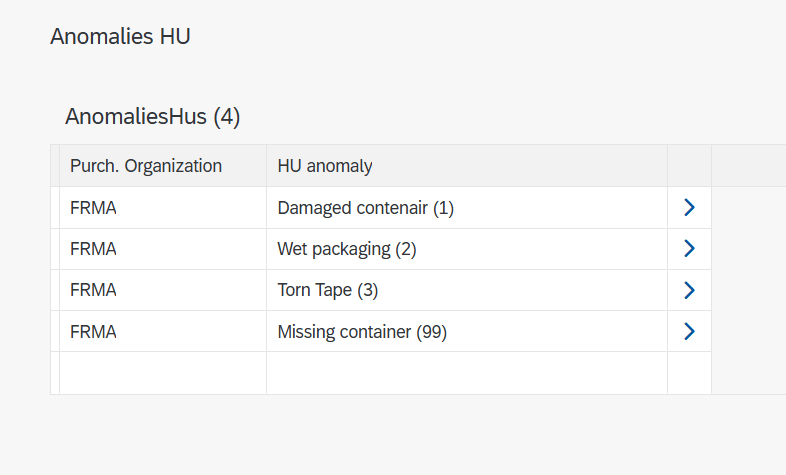
We can see that the filter is working correctly.
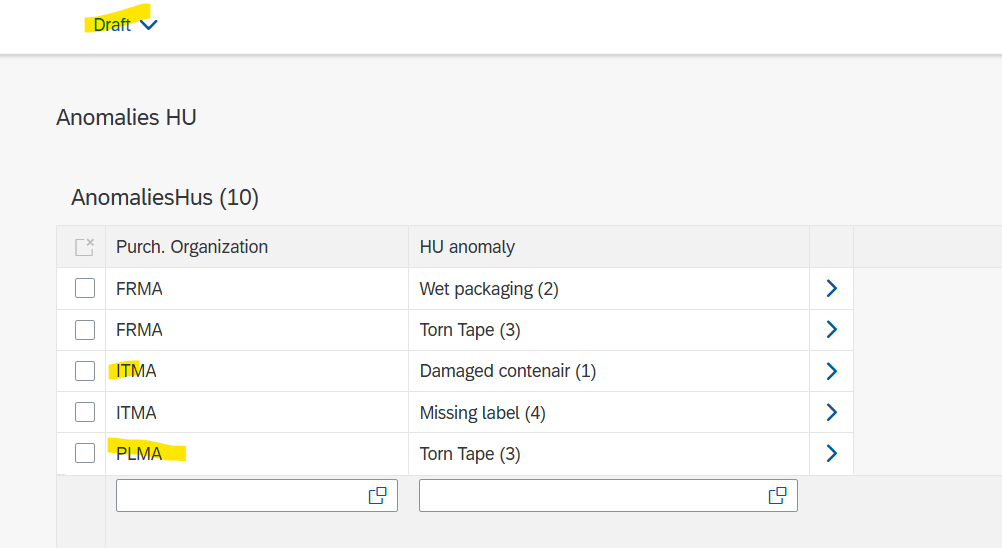
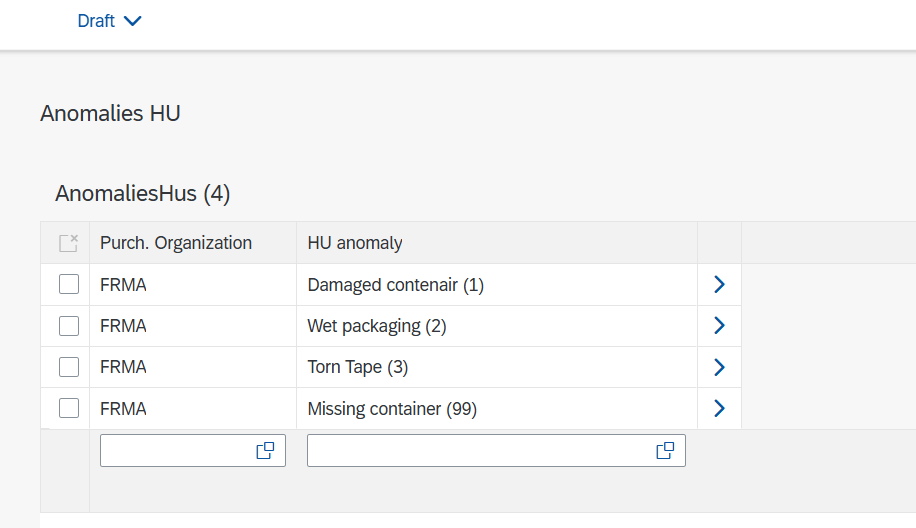
However, by activating Draft mode on the Fiori application, we can see that the user is able to view entries in “Draft” in the application, even if they are not part of their purchasing organization:
3. Solution
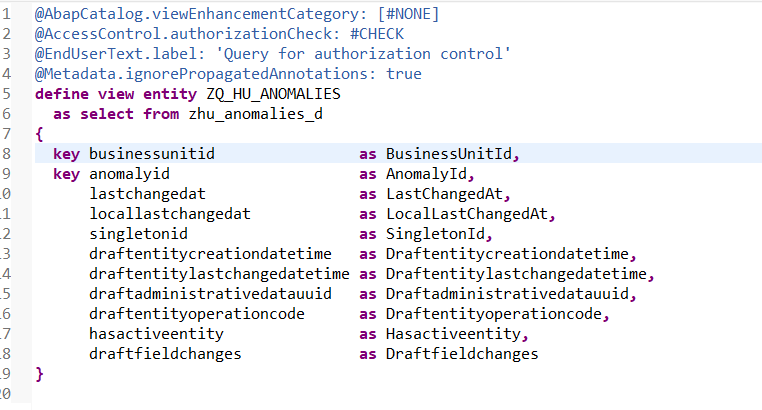
In this case, you must create a new CDS of type “Draft Query View” on top of the draft table and apply the desired permissions to it:
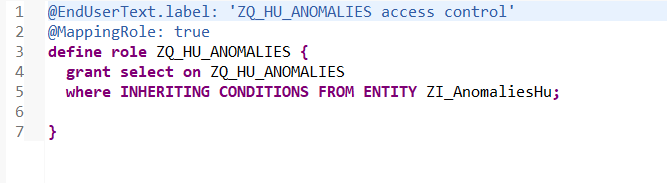
Then DCL Access Control. Here, we want the same permissions as on the basic CDS.
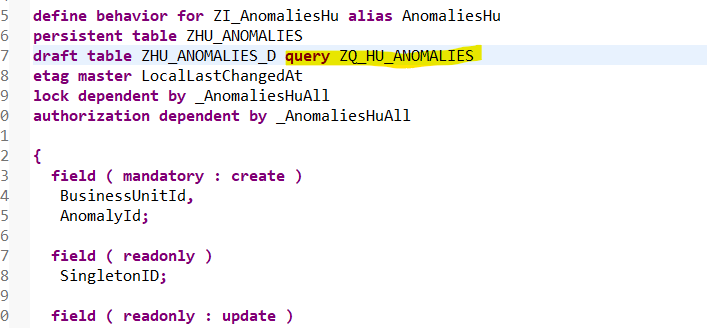
Then add it to the BDEF.
From now on, on the Fiori application, even when viewing Drafts, users will only see entries that they are authorized to view.
Conclusion
We have therefore seen that when we activate draft mode on a RAP business object, we must remember to add an authorization control to the draft tables as well.